[How To] How to turn on/off Device Encryption or BitLocker in Windows settings and check the encryption status
Answer
The article introduces how to check the encryption status, enable/disable Device Encryption, and BitLocker in Windows.
Check the encryption status
1. Enter "CMD" in Windows search bar.
2. Run "Command Prompt" as administrator.
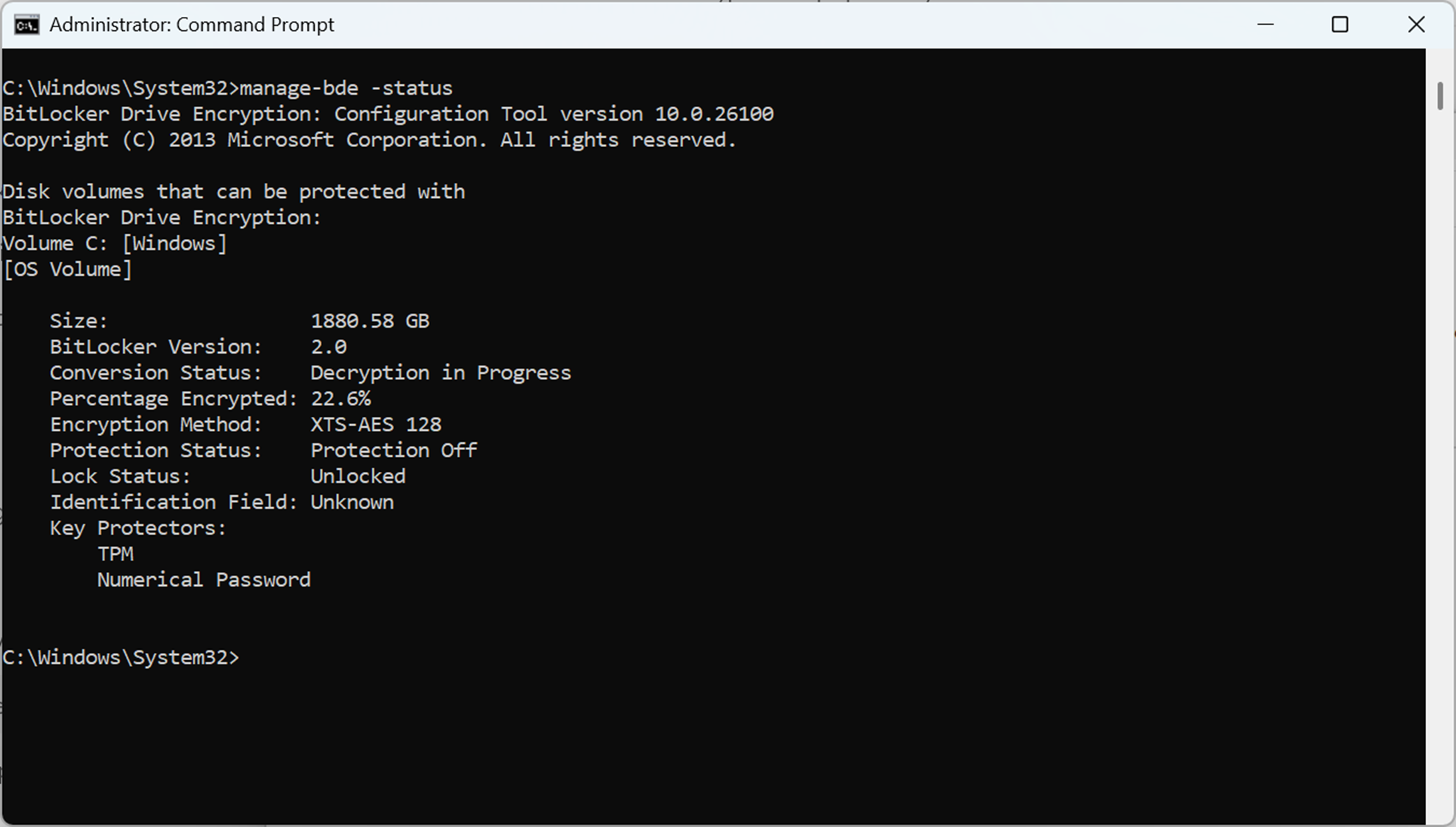
3. Type "manage-bde -status" to check the encryption method and status.

Enable Device Encryption
1. Enter "Device Encryption Settings" in Windows search bar.
2. Open "Device encryption settings".
3. Toggle on "Device Encryption".

Turn on BitLocker
1. Enter "Manage BitLocker" in Windows search bar.
2. Open "Manage BitLocker".
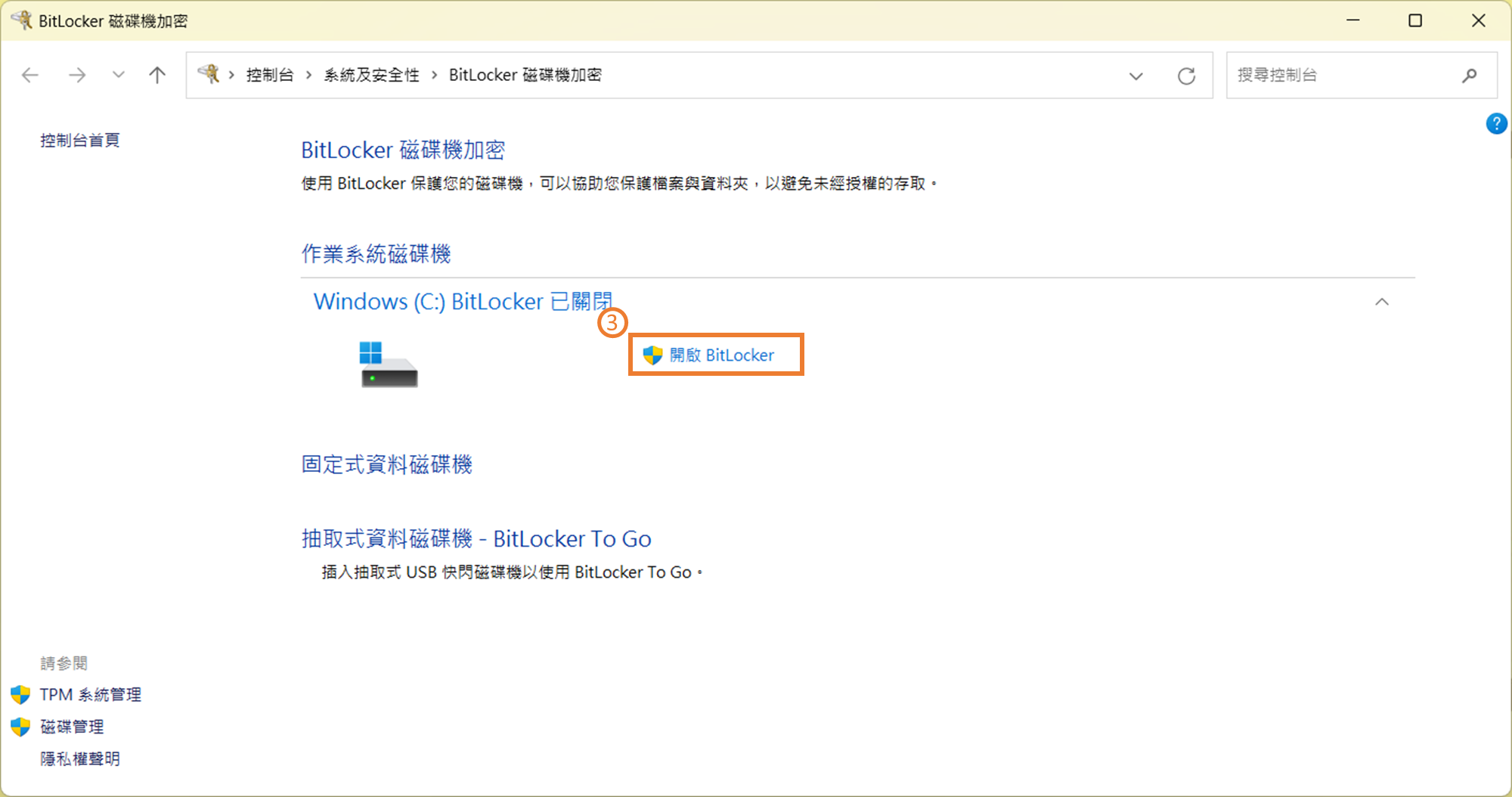
3. Click "Turn on BitLocker".

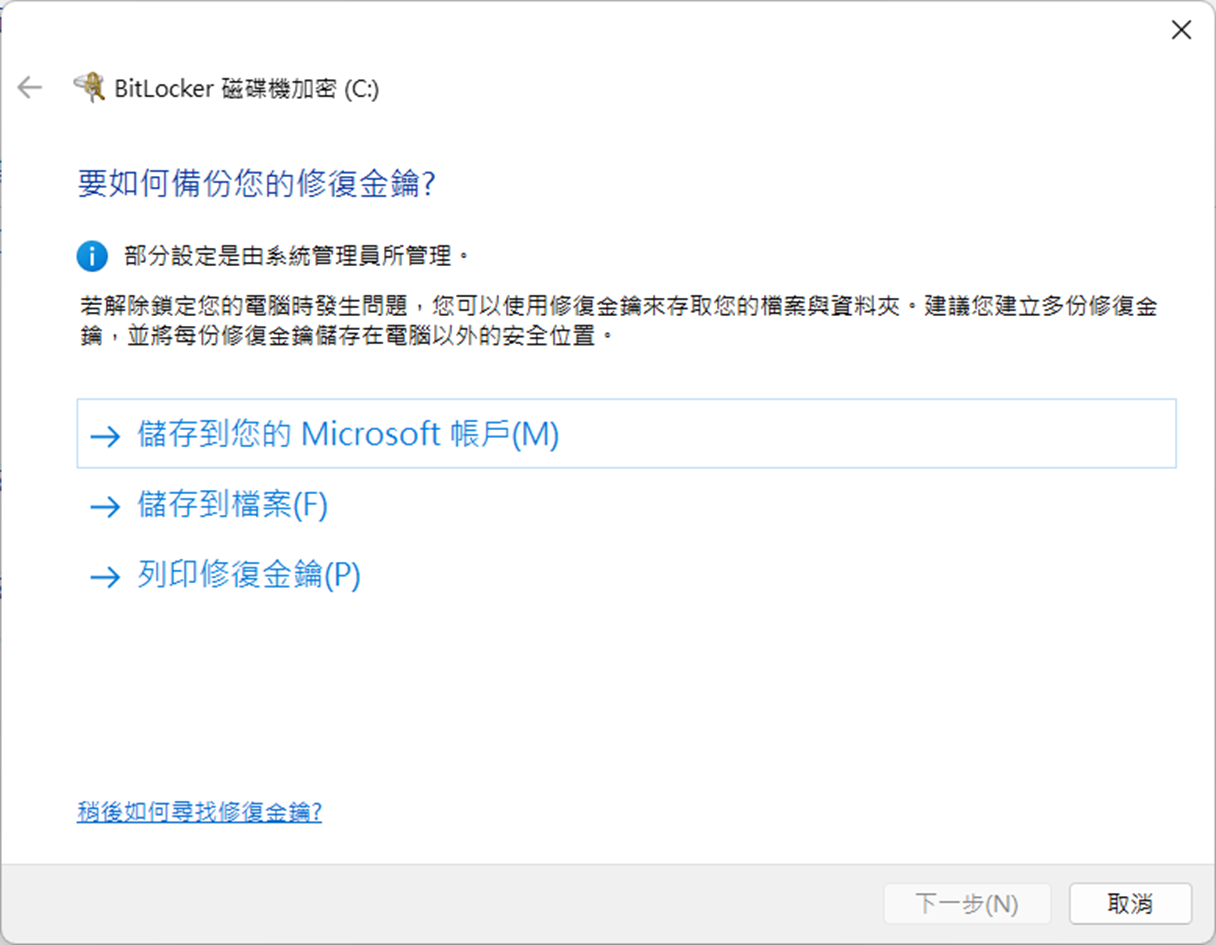
4. Select the method to back up the recovery key.

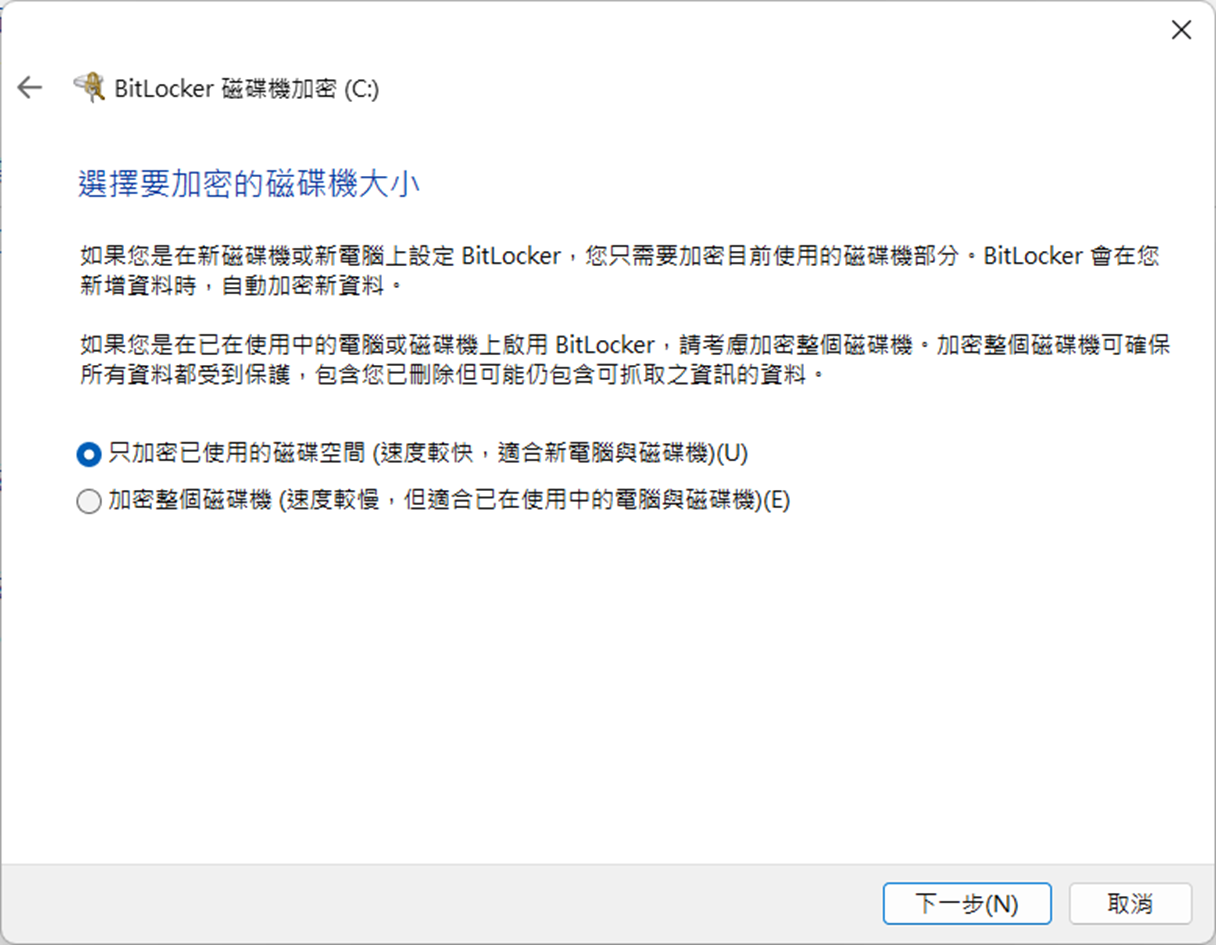
5. Choose the volume for drive encryption.
Encrypt on used disk space is preferred for faster encryption.

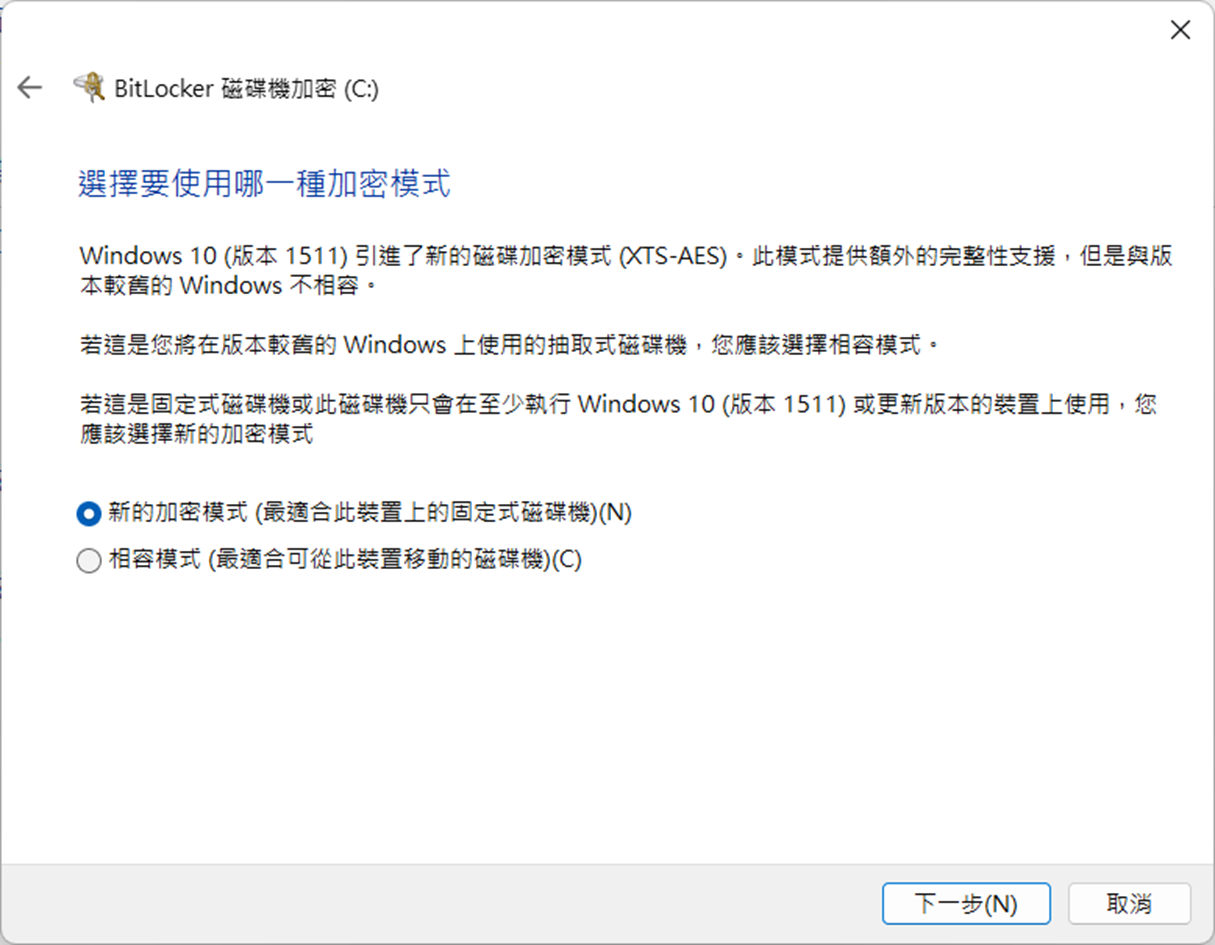
6. Choose the encryption mode.
Select "New encryption mode" is preferred.

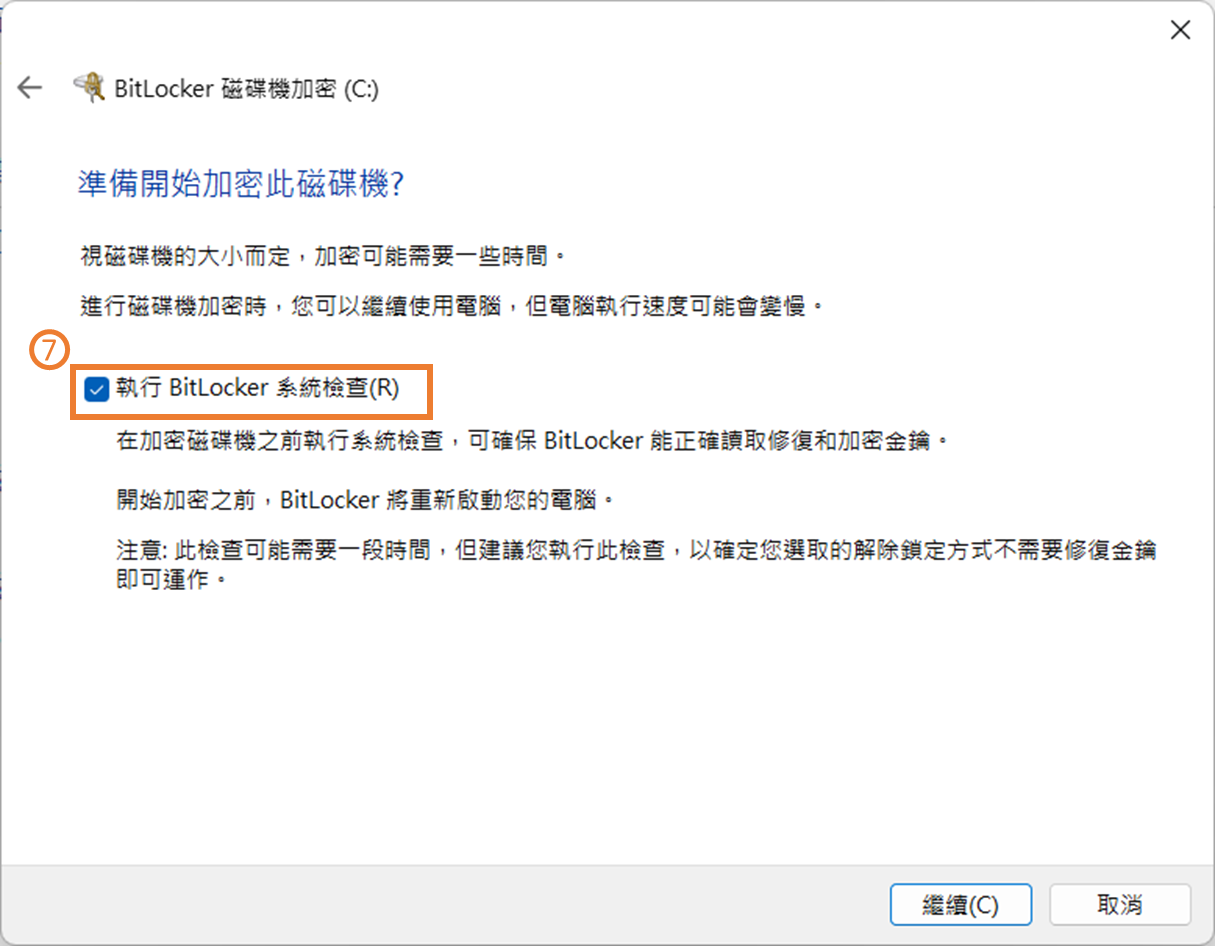
7. Tick "Run BitLocker system check" and click continue.

8. Reboot the system to complete the encryption process.
Disable Device Encryption
1. Enter "Device Encryption Settings" in Windows search bar.
2. Open "Device encryption settings".

3. Toggle off "Device Encryption".

4. When popping up the confirmation, click "Turn off" to disable device encryption.

Turn off BitLocker
1. Enter "Manage BitLocker" in Windows search bar.
2. Open "Manage BitLocker".

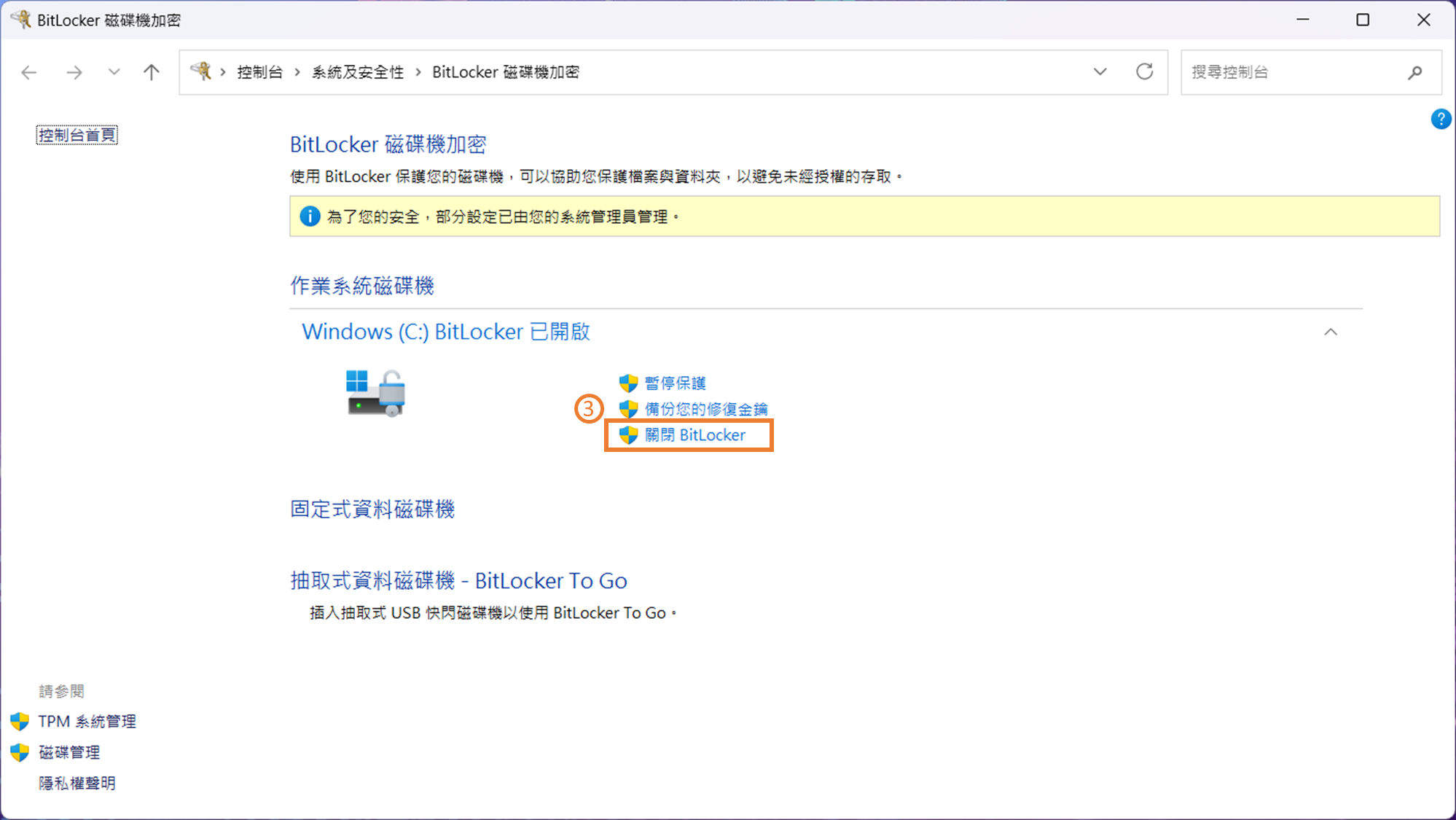
3. Click "Turn off BitLocker".

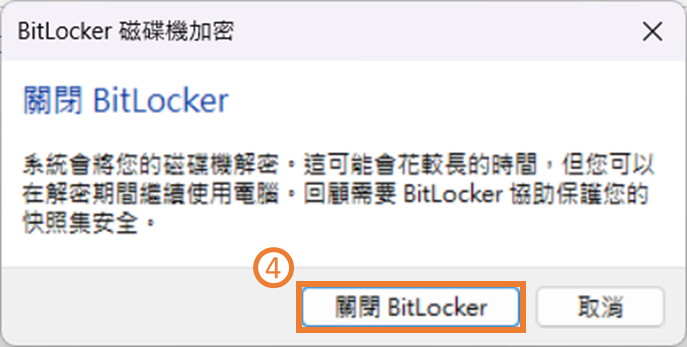
4. When popping up the confirmation, click "Turn off BitLocker" to disable BitLocker.