Answer

Windows 11 provides system-level color management to help the colors under the operating system be more accurate and improve the display's color quality across Windows applications. 

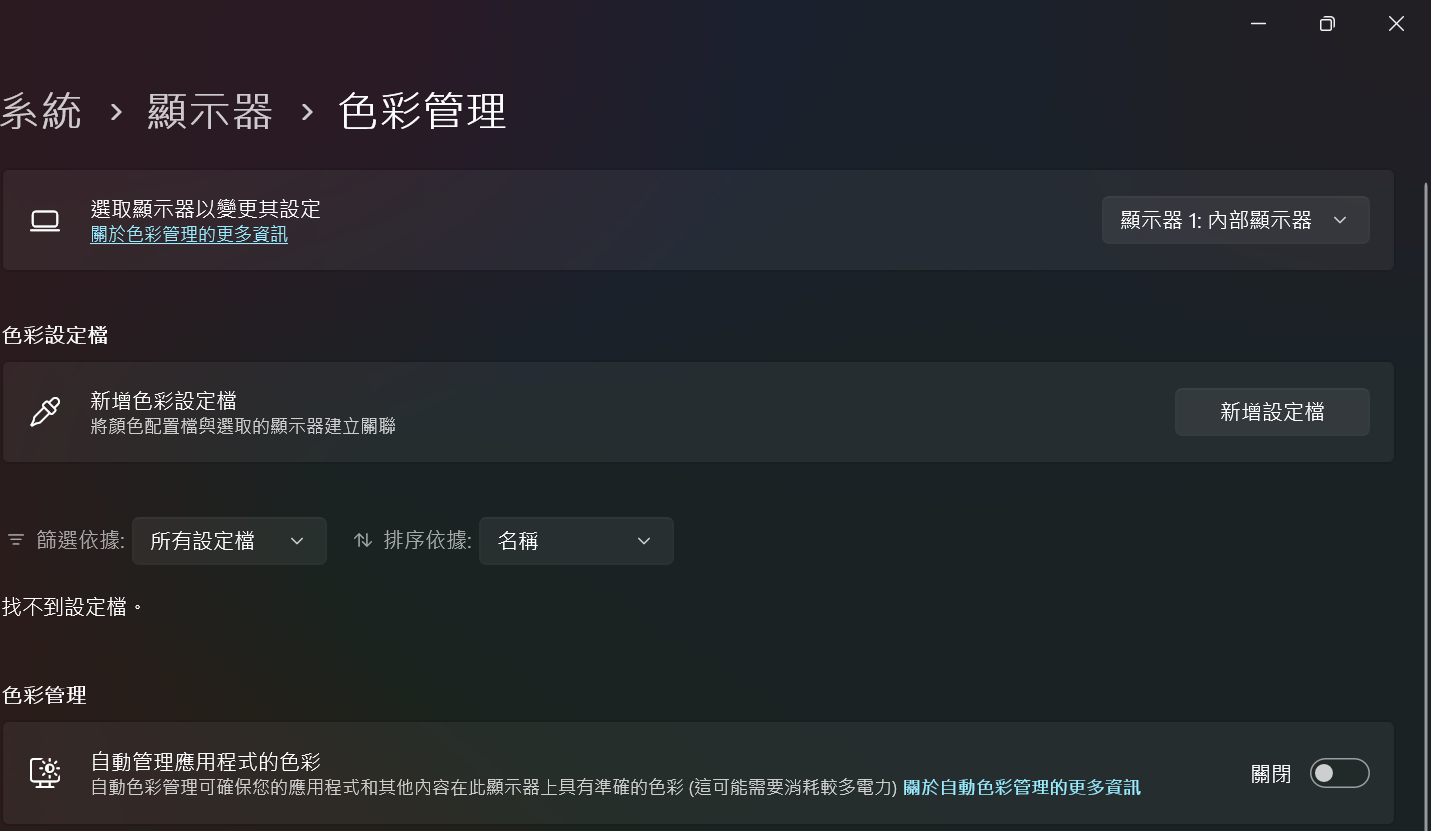
To turn the auto color management on/off, please refer to the below steps

1. Follow the corresponding path through different OS version

    24H2: Select the Start button, then click Settings > System > Display > Color profile

    23H2: Select the Start button, then click Settings > System > Display > Advanced Display

2. Choose the display that you want to modify the settings

3. Select Automatically manage color for apps to turn on or turn off

*The automatically manage color for apps option is turned off by default


The feature of automatically manage color for apps needs GPUs to support the function.

Supposing there is some issue or problem after enabling the Automatically manage color for apps, please refer to the following corresponding FAQ to perform the clean installation of the graphics driver listed on the MSI website


Intel:  [How To] Intel graphics driver Clean Install/Update.


NVIDIA: [How To] NVIDIA graphics driver Clean Install/Update


AMD: [How To] Clean Install/Upgrade AMD Graphics Driver and Radeon Software


If there is no automatically manage color for apps option under the operating system.

Please refer to the information below to check if the system meets the supported requirements.


System Requirement


OS: Windows 11 version 22H2 (OS Build 22621.2506) or newer


WDDM (Windows Display Driver Model) driver version 3.0 or greater 


*WDDM 3.0 already included in Windows 11, version 21H2


Supported GPU


- AMD: 


    ● AMD RX 500 400 Series or later


    ● AMD Ryzen processors with Radeon Graphics


- Intel: 


    ● Integrated: Intel 12th Gen processor or newer


    ● Discrete: Intel DG1 or newer


- NVIDIA:


    NVIDIA GTX 10 series or later


Reference